

If you’re still using Windows 10, 2025 is the perfect time to upgrade Windows 10 to Windows 11. With improved performance, better security, modern design, and long-term support, Windows 11 offers a smoother and more powerful experience.
This complete guide explains the requirements, upgrade steps, and common fixes for anyone planning to upgrade from Windows 10 to Windows 11, whether you’re using a desktop, laptop, or custom-built PC.
1. Windows 11 System Requirements (2025)
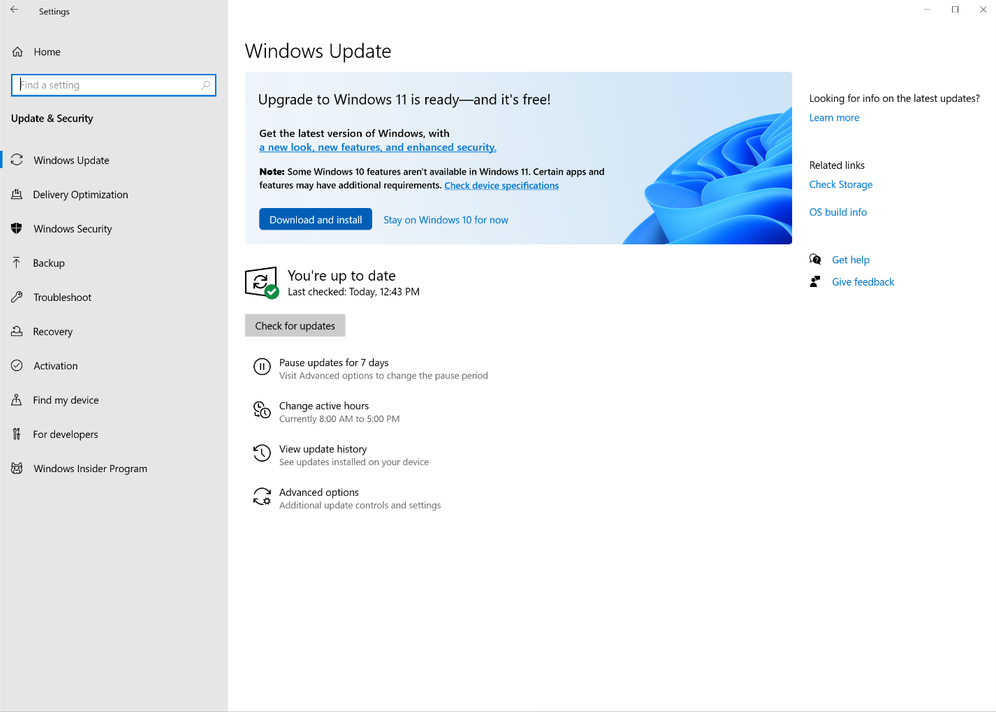
To upgrade successfully, your PC must meet these requirements:
- 1 GHz or faster dual-core processor
- 4GB RAM (8GB recommended)
- 64GB or more storage
- UEFI BIOS with Secure Boot
- TPM 2.0 enabled
- DirectX 12 compatible graphics card
- HD display (720p+)
Tip: If your system fails TPM or Secure Boot, scroll to the Common Fixes section.
2. Check If Your PC Is Eligible
Use Microsoft’s official compatibility tool:
PC Health Check App
- Tells you instantly if your PC supports Windows 11
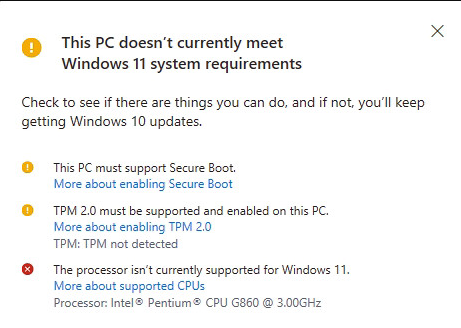
- Shows reasons for incompatibility (TPM, CPU, Secure Boot, etc.)
Why this matters?
If your PC doesn’t meet requirements, the upgrade button may not appear in Windows Update.
3. How to Upgrade from Windows 10 to Windows 11
You have three upgrade options:
Option A: Upgrade Using Windows Update (Easiest)
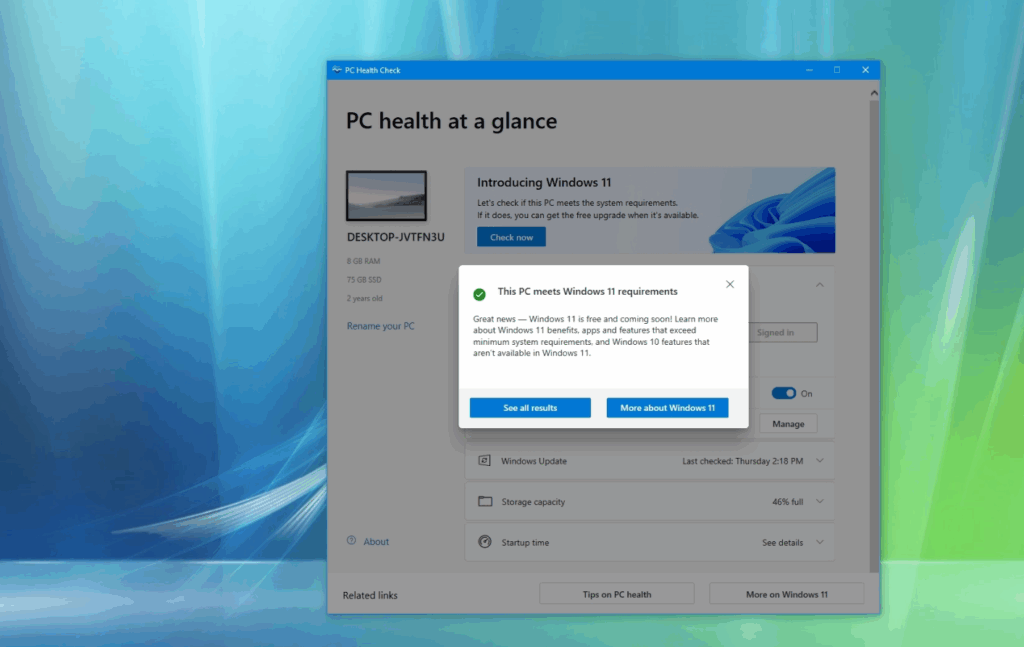
- Go to Settings → Update & Security → Windows Update
- Click Check for updates
- Look for:
“Upgrade to Windows 11 is ready” - Select Download and Install
- PC will restart and complete the upgrade
Option B: Use the Windows 11 Installation Assistant
Best for PCs that are compatible but don’t show the upgrade option.
- Download Windows 11 Installation Assistant from Microsoft
- Click Run
- Accept the license terms
- The upgrade will start and take 20–40 minutes
Option C: Use the Media Creation Tool (Clean or Upgrade Install)
- Download Media Creation Tool
- Choose Upgrade this PC now or
- Create a bootable USB if you want a clean install
- Follow the on-screen instructions
4. Common Windows 10 → Windows 11 Upgrade Issues & Fixes
Upgrading can sometimes fail due to hardware or settings. Here are the most frequent errors and how to fix them.
Problem: TPM 2.0 Not Enabled
Fix:
- Restart PC → Enter BIOS (F2, F10, DEL, ESC)
- Find Security or Advanced
- Enable TPM, PTT, or fTPM
Problem: Secure Boot Not Enabled
Fix:
- Enter BIOS
- Go to Boot tab
- Enable Secure Boot
- Save and reboot
Problem: Unsupported CPU
Many older Intel and AMD CPUs are not officially supported.
Fix:
- Use bypass methods like registry edits or upgrade tools
- Example registry entry:
HKEY_LOCAL_MACHINE\SYSTEM\Setup\MoSetup
AllowUpgradesWithUnsupportedTPMOrCPU = 1
Problem: “This PC can’t run Windows 11”
Usually caused by TPM or Secure Boot.
Fix:
- Enable TPM & Secure Boot in BIOS
- Disconnect unnecessary USB devices
- Check for BIOS updates
Problem: Installation Loop or Frozen Upgrade
Fix:
- Uninstall antivirus
- Remove external drives
- Ensure 20GB+ free space
- Perform upgrade using Installation Assistant instead of Windows Update
5. Post-Upgrade Checklist
After Windows 11 is installed:
- Install Windows Updates
- Update GPU drivers (NVIDIA/AMD/Intel)
- Enable OneDrive backup
- Reinstall any removed apps
- Check activation status under:
Settings → System → Activation
FAQs: Windows 10 to Windows 11 Upgrade
1. Will upgrading delete my files?
No. The upgrade keeps all your files and apps.
2. Do I need a Windows 11 license?
If your Windows 10 is activated, the upgrade normally activates automatically.
If not, you can activate using a Windows 11 key.
3. How long does the upgrade take?
Usually 20–45 minutes depending on hardware speed.
4. Can I downgrade back to Windows 10?
Yes – within 10 days after upgrading via:
Settings → System → Recovery
5. Can unsupported PCs run Windows 11?
Yes, with bypass methods-although not officially recommended.
Get a genuine Windows 11 Pro key at an unbeatable price and unlock advanced features for productivity, security, and professional use.
Windows Server - Installation & Activation

Visual Studio 2017 / 2019 - Installation & Activation
Office Home & Business 2016 / 2019 / 2021 – Installation & Activation

Office 2019 / 2021 Home & Student – Installation & Activation
Microsoft Visio 2016 / 2019 / 2021 - Installation & Activation
Microsoft Project 2016 / 2019 / 2021 - Installation & Activation
Office 2016 Professional Plus - Installation & Activation Guide
Office 2019 Professional Plus - Installation & Activation Guide
Windows 10 - Installation & Activation Guide
Windows 11 - Installation & Activation Guide

