




This guide will help you download, install, and activate Microsoft Office 2016 Professional Plus using the official Microsoft setup page or ISO file.
The steps are simple and beginner-friendly.
Before You Start
You will need:
- A valid Office 2016 Professional Plus product key
- A PC running Windows 7, 8, 8.1, 10, or 11
- A Microsoft Account (Optional)
- An internet connection
Office 2016 supports both the setup.office.com installer and ISO installation.
Step 1 – Download Office 2016
You have two ways to download Office 2016.
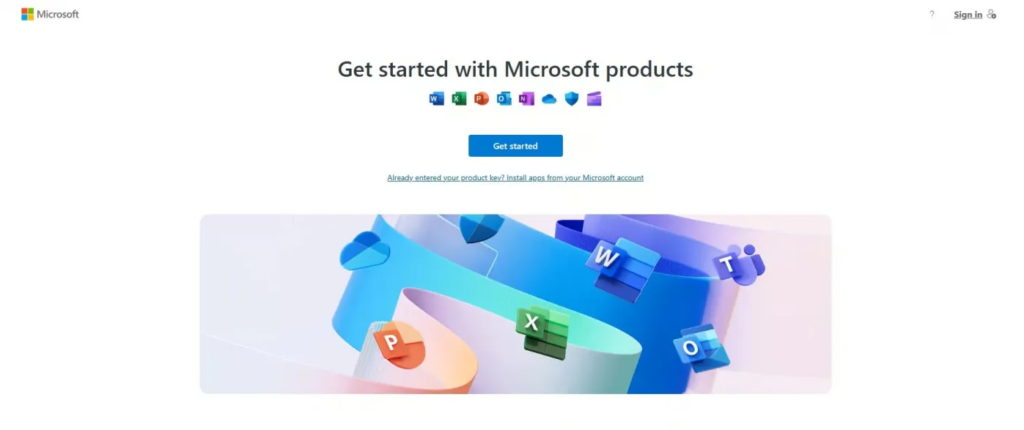
Option A – Download from Microsoft (setup.office.com)
- Visit https://setup.office.com/
- Sign in using your Microsoft Account.
- Enter your Office 2016 product key.
- Select your region and language.
- Click Download.
This will download the official Microsoft Click-to-Run installer for Office 2016.
Option B – Download the Official ISO File
If you prefer using an ISO or the installer fails, use your store’s download link or Microsoft’s ISO source (if available).
Step 2 – Install Office 2016
Regardless of whether you used setup.office.com or an ISO, installation is very simple.
If you downloaded the Click-to-Run installer:
- Open the downloaded file.
- Allow the installer to run when asked (click Yes).
- Installation begins automatically.
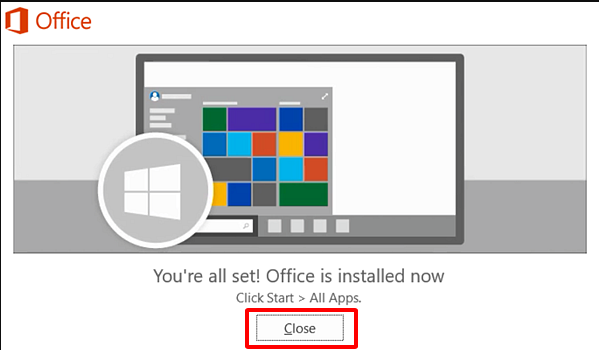
- When you see:
“Microsoft Office Professional Plus 2016 installed successfully.”
> click Close.
If you used an ISO/IMG file:
- Right-click the ISO and select Mount (Windows 10/11).
- Open the new virtual drive.
- Run setup.exe.
- Wait for installation to finish.
- Click Close.
Step 3 – Activate Office 2016
Automatic Activation
- Open Word or Excel.
- If asked, sign in with the same Microsoft Account used on setup.office.com.
- Office will activate automatically online.
Manual Activation (If Required)
- Open Word.
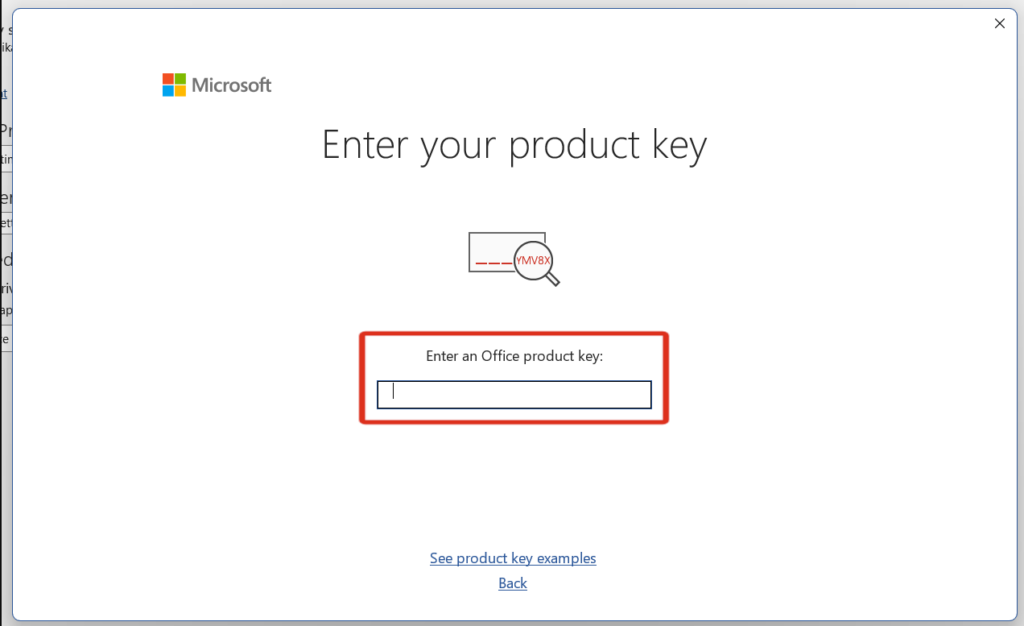
- Go to File > Account > Change Product Key.
- Enter your 25-character Office 2016 key.
- Click Activate.
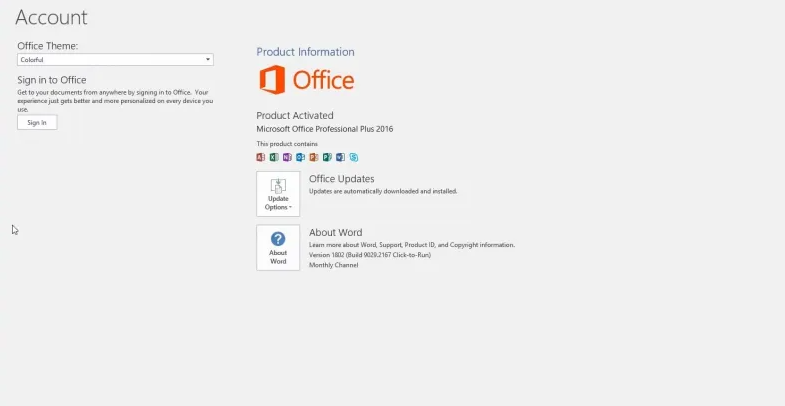
Confirm Activation Status
- Open Word.
- Go to File > Account.
- Look for: “Product Activated”.
If you see this, Office is successfully activated.
Need Help? Troubleshooting & Support
If you have any concerns or require technical support, don’t hesitate to reach out via our live chat at https://keylify.com/ or email [email protected]. We’re available 24/7 to help.