

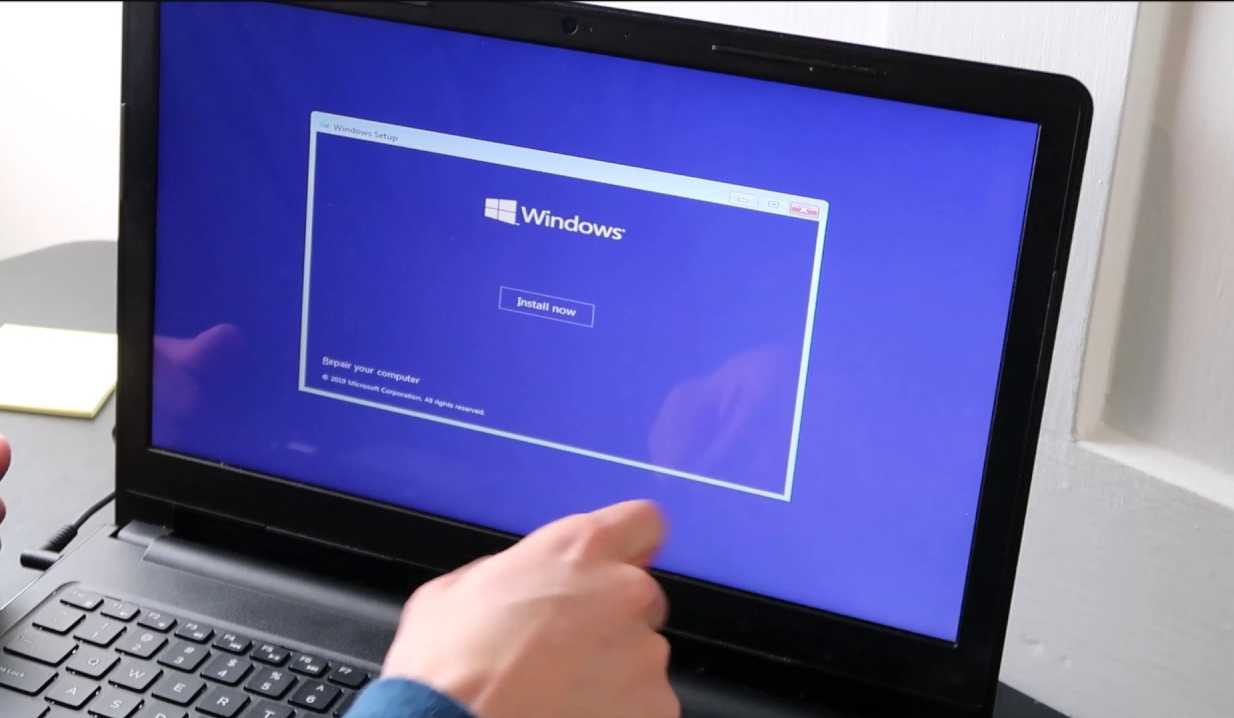
This guide will show you how to download, install, and activate Windows 10 on your computer.
Whether you’re upgrading or doing a clean install, the steps are simple and easy to follow.
Before You Begin
Make sure you have:
- A Windows 10 product key
- A USB drive (8GB or more) if you plan a clean installation
- A stable internet connection
- A PC that meets the Windows 10 minimum requirements
If you’re upgrading from Windows 7 or Windows 8.1, you can keep your files.
Step 1 – Download Windows 10
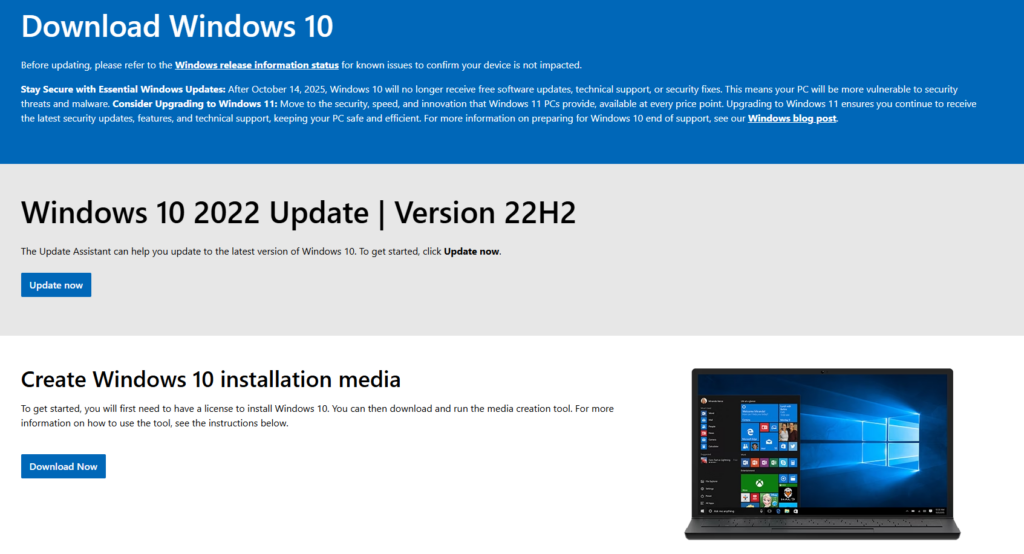
Go to Microsoft’s official download page: https://www.microsoft.com/software-download/windows10
You will see two main options:
A. Windows 10 Installation Assistant (Upgrade Method)
Use this if you’re upgrading an existing Windows system and want to keep your files and apps.
- Click Download Now under Windows 10 Installation Assistant.
- Open the file.
- Follow the on-screen instructions.
- Your PC will reboot several times during the upgrade.
B. Create Windows 10 Installation Media (USB / Clean Install)
Use this if you want to install Windows 10 on a new PC or want a fresh, clean installation.
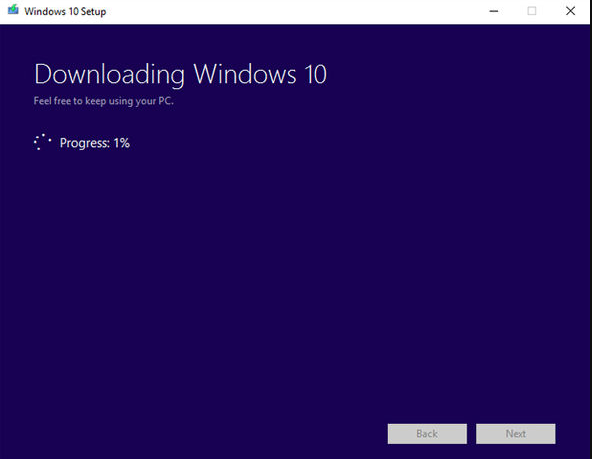
- Click Download Tool Now under Create Windows 10 installation media.
- Open the tool.
- Choose Create installation media.
- Select language and edition.
- Choose USB Flash Drive.
- Select your USB drive and let the tool create the installer.
Step 2 – Install Windows 10
If you’re upgrading, the Installation Assistant will guide you automatically.
For a clean installation:
- Insert your Windows 10 USB installer.
- Restart your PC.
- Enter the Boot Menu (F2, F12, ESC, or DEL depending on your computer).
- Choose your USB drive.
- Click Install Now.
- Choose your language, region, and keyboard layout.
- When asked for a product key, you can:
- Enter it now
- Or click I don’t have a product key (activate later)
- Choose Custom Installation.
- Select the drive where you want Windows installed.
- Click Next – Windows will begin installing.
Once installation finishes, follow the on-screen setup to choose your preferences.
Step 3 – Activate Windows 10
A. Activate Through Settings
- Open Start > Settings
- Go to Update & Security
- Click Activation
- Select Change product key
- Enter your Windows 10 key
- Click Activate
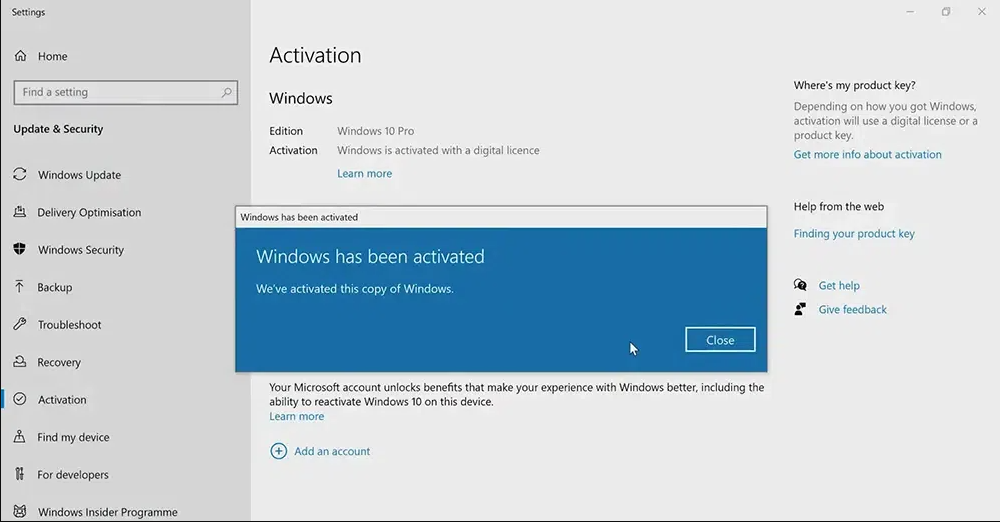
B. Check Activation Status
Go to Settings > Update & Security > Activation
Look for:
“Windows is activated”
or
“Windows is activated with a digital license”
This confirms your Windows is fully activated.
Need Help? Troubleshooting & Support
If you have any concerns or require technical support, don’t hesitate to reach out via our live chat at https://keylify.com/ or email [email protected]. We’re available 24/7 to help.
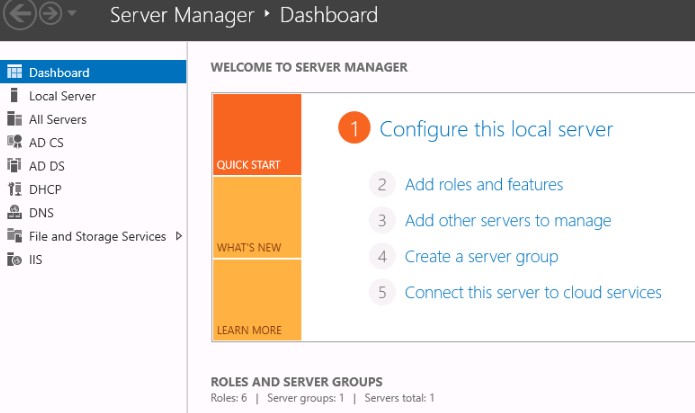
Windows Server - Installation & Activation

Visual Studio 2017 / 2019 - Installation & Activation
Office Home & Business 2016 / 2019 / 2021 – Installation & Activation

Office 2019 / 2021 Home & Student – Installation & Activation
Microsoft Visio 2016 / 2019 / 2021 - Installation & Activation
Microsoft Project 2016 / 2019 / 2021 - Installation & Activation
Office 2016 Professional Plus - Installation & Activation Guide
Office 2019 Professional Plus - Installation & Activation Guide
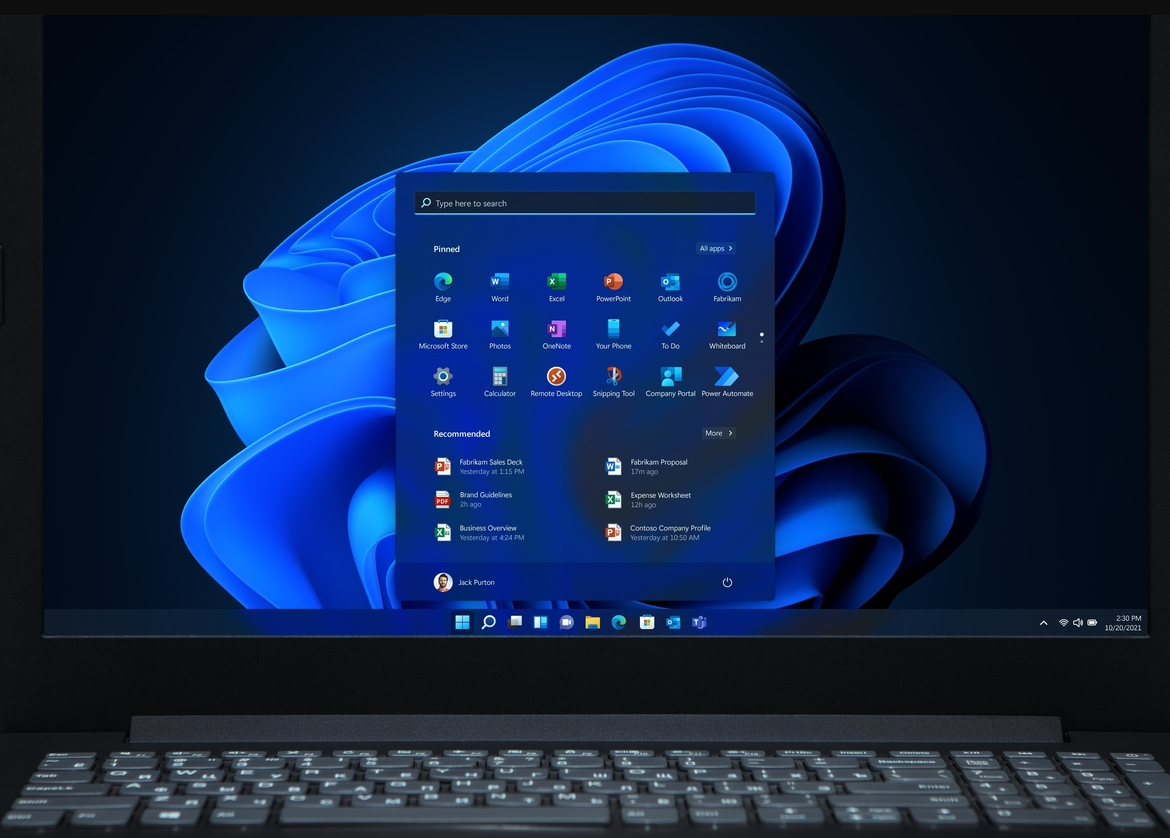
Windows 11 - Installation & Activation Guide
Office 2021 Professional Plus - Installation & Activation Instructions

