

This guide will help you install and activate Microsoft Project Professional for any of the following versions:
- Project 2016 Professional
- Project 2019 Professional
- Project 2021 Professional
All three versions install the same way and use similar activation steps.
Just follow the instructions based on your version.
Before You Start
You will need:
- A valid Project product key
(Make sure it matches your version – 2016, 2019, or 2021) - A Windows PC
- Project 2016 works on Windows 7, 8.1, 10, 11
- Project 2019 & 2021 require Windows 10 or 11
- A Microsoft Account
- A stable internet connection
Step 1 – Download Microsoft Project (All Versions)
No matter which version you have, the download process is simple.
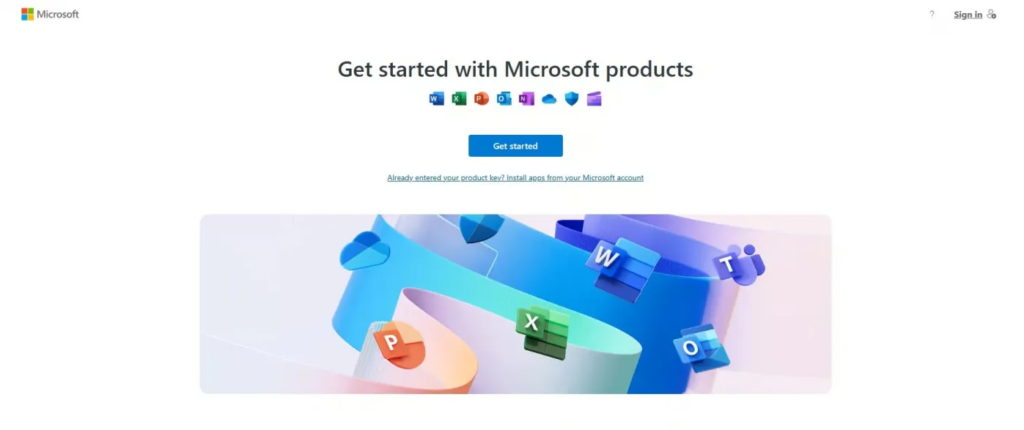
Option A – Download from Microsoft (setup.office.com)
Works for Project 2016, Project 2019 & Project 2021
- Go to https://setup.office.com/
- Sign in with your Microsoft Account.
- Enter your Project product key.
- Select your language and region.
- Click Download.
This downloads the official Click-to-Run installer.
Option B – Install Using an ISO File
- Download the ISO/IMG file (from your store’s link).
- Right-click the file > Mount.
- A new virtual drive will appear in This PC.
- Open it and find setup.exe.
Step 2 – Install Microsoft Project
The installation steps are identical for all versions.
Click-to-Run Installer (setup.office.com)
- Open the downloaded file.
- If prompted by Windows, click Yes.
- Installation will start automatically.
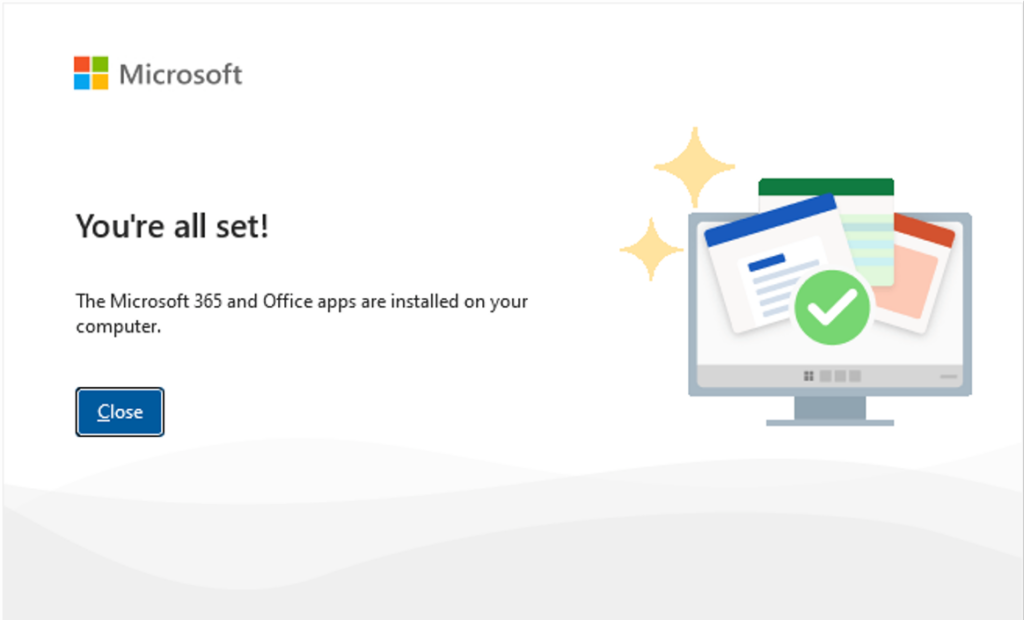
- Wait until you see:
“You’re all set! Project is installed now.” - Click Close.
ISO / Mounted Installer
- Open the mounted drive.
- Double-click setup.exe.
- Wait for installation to finish.
- Click Close.
Step 3 – Activate Microsoft Project (All Versions)
Activation begins when you open Project for the first time.
Automatic Activation
- Launch Microsoft Project.
- Sign in with your Microsoft Account if asked.
- The program will attempt to activate online.
Manual Activation
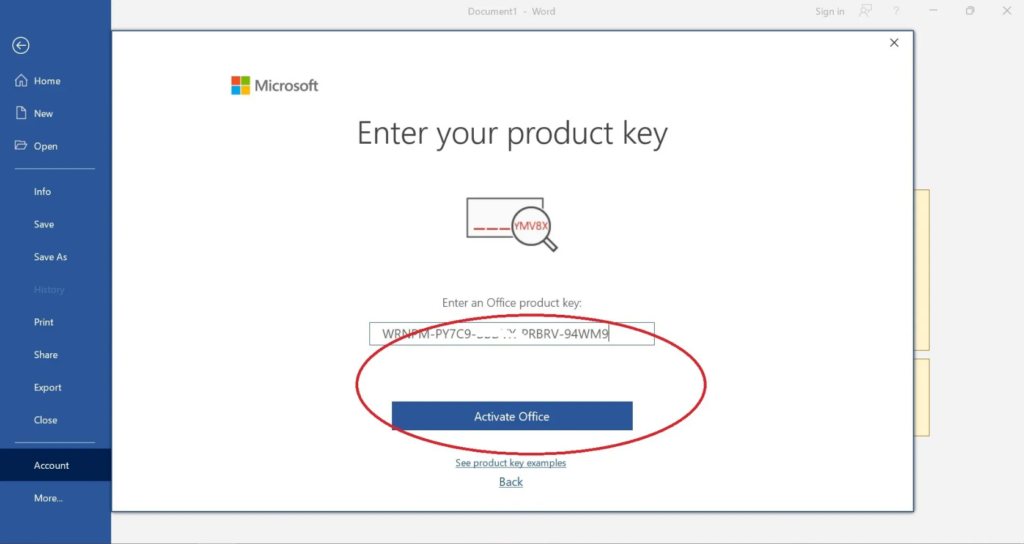
If an activation window appears:
- Click Enter Product Key.
- Type your 25-character key for Project 2016 / 2019 / 2021.
- Click Activate.
How to Verify Activation
- Open Project.
- Go to File > Account.
- Look for:
“Product Activated”
If you see this message – you’re all set.

Need Help? Troubleshooting & Support
If you have any concerns or require technical support, don’t hesitate to reach out via our live chat at https://keylify.com/ or email [email protected]. We’re available 24/7 to help.
Windows Server - Installation & Activation

Visual Studio 2017 / 2019 - Installation & Activation
Office Home & Business 2016 / 2019 / 2021 – Installation & Activation
Office 2019 / 2021 Home & Student – Installation & Activation
Microsoft Visio 2016 / 2019 / 2021 - Installation & Activation
Office 2016 Professional Plus - Installation & Activation Guide
Office 2019 Professional Plus - Installation & Activation Guide
Windows 10 - Installation & Activation Guide
Windows 11 - Installation & Activation Guide
Office 2021 Professional Plus - Installation & Activation Instructions

