

Windows 11 continues to evolve in 2025, bringing new security features, UI improvements, and performance upgrades. But these improvements also mean stricter hardware requirements – especially around TPM 2.0, Secure Boot, and modern CPUs.
This complete guide breaks down the official Windows 11 system requirements for 2025, explains what each component means, and helps you check whether your PC is compatible before upgrading.
Official Windows 11 System Requirements (2025 Edition)
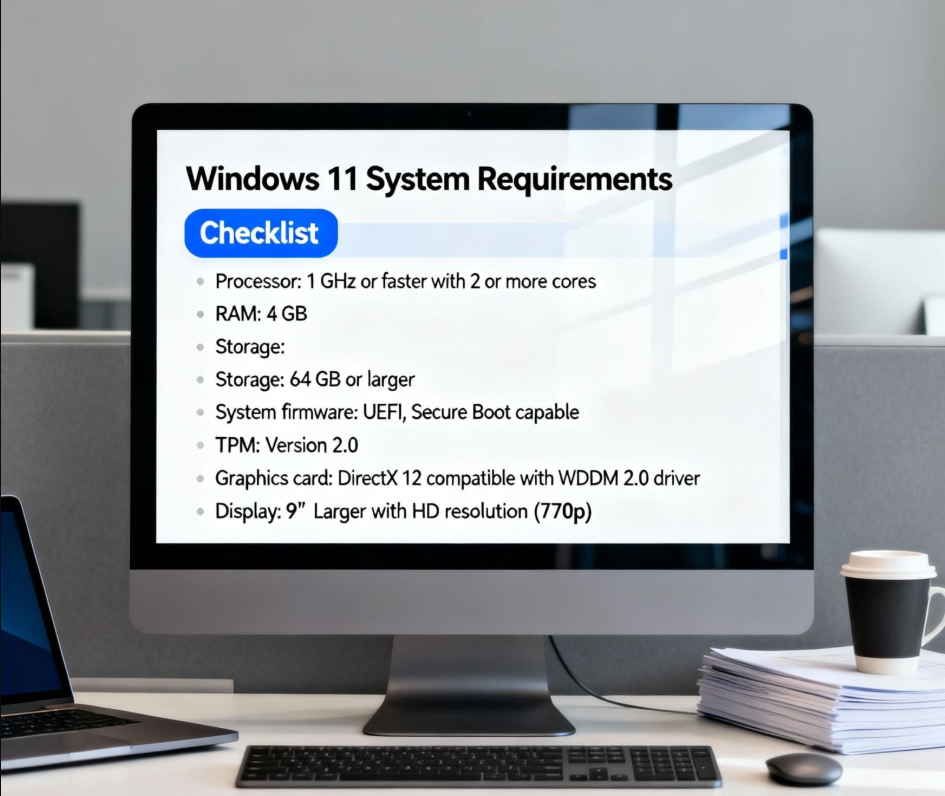
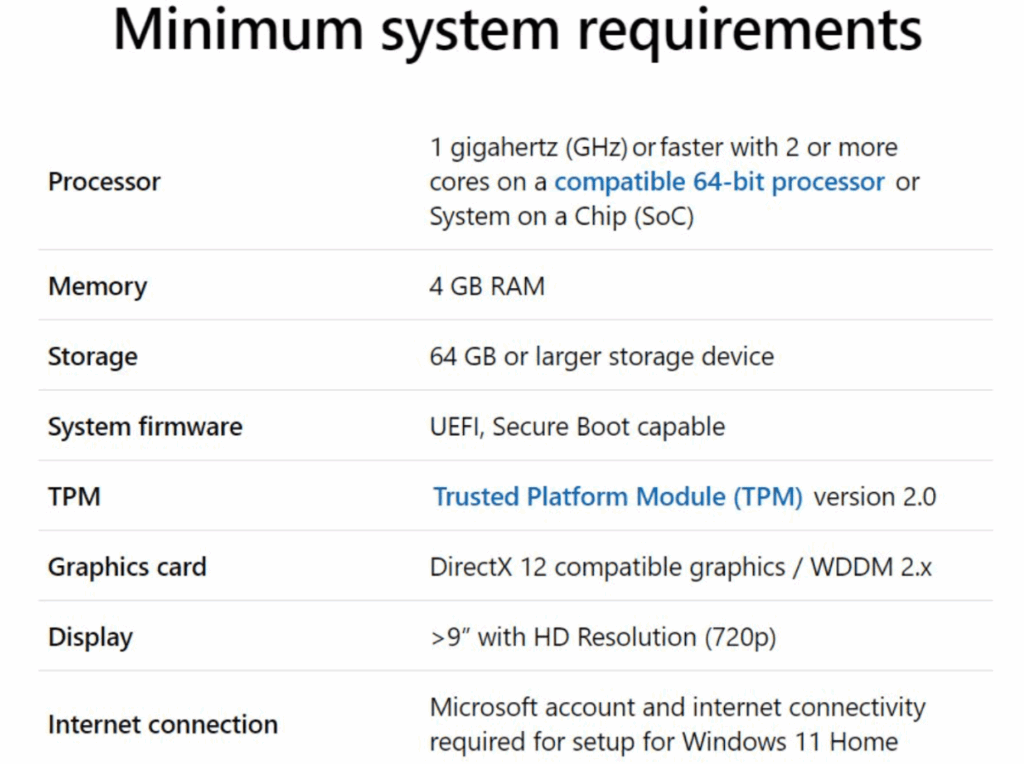
1. Processor (CPU)
- 1GHz or faster
- 2 or more cores
- 64-bit processor
- Must be on Microsoft’s supported CPU list
Most Intel 8th-gen and newer, AMD Ryzen 2000 and newer are supported.
2. RAM
- 4GB minimum
- 8GB recommended for smooth performance
- 16GB recommended for heavy multitasking & gaming
3. Storage
- 64GB minimum
- 128GB recommended for apps and future updates
- SSD strongly recommended for best performance
4. System Firmware
- UEFI BIOS
- Secure Boot required
Secure Boot ensures Windows boots using trusted software only.
5. Trusted Platform Module (TPM)
- TPM 2.0 required
This is one of the most important requirements for installation and security.
6. Graphics Card
- DirectX 12 compatible
- WDDM 2.0 driver support
Modern integrated and dedicated GPUs meet this.
7. Display
- 9” or larger
- 720p HD
- 8-bit color
8. Internet & Microsoft Account
- Required for Windows 11 Home setup
- Required for Windows 11 Pro if using cloud features
What’s New in Windows 11 Requirements for 2025?
While the core requirements haven’t changed dramatically, a few trends matter:
More apps now expect 8GB RAM
Windows 11 AI features, widgets, and modern apps run smoother with more memory.
SSD storage is becoming essential
HDDs are still supported, but performance is significantly worse.
TPM enforcement is stricter
More installations fail without TPM enabled.
Microsoft account usage is expanding
For cloud sync, Microsoft Store, Copilot, and Teams.
How to Check If Your PC Supports Windows 11
Use Microsoft’s official tool:
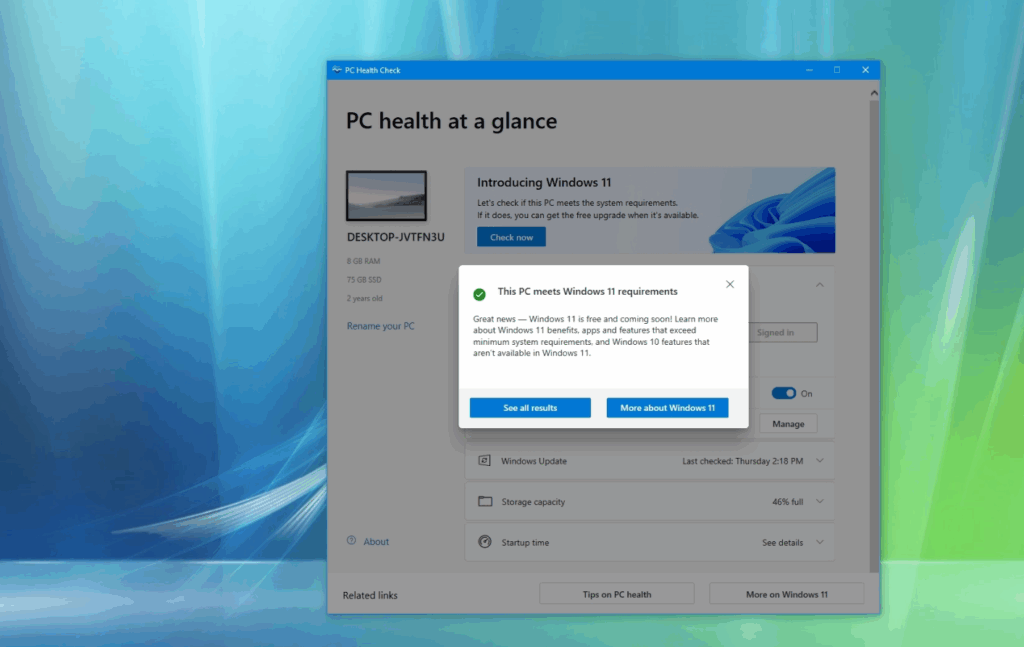
PC Health Check App
- Verifies CPU, TPM, Secure Boot, RAM, and storage
- Gives a simple “This PC can run Windows 11” message
Alternative: WhyNotWin11
A community tool with a detailed compatibility breakdown.
How to Enable TPM 2.0 and Secure Boot
f your PC fails the requirements, it’s usually due to TPM or Secure Boot.
Enable TPM 2.0
- Restart PC & open BIOS (F2, Delete, ESC, F10)
- Go to “Security” or “Advanced” tab
- Enable PTT (Intel) or fTPM (AMD)
Enable Secure Boot
- Enter BIOS
- Go to “Boot” or “Security”
- Enable Secure Boot
- Save & restart
Can You Install Windows 11 Without TPM?
Yes – but not officially.
You can bypass TPM and CPU checks using registry edits like:
HKEY_LOCAL_MACHINE\SYSTEM\Setup\LabConfig- BypassTPMCheck
- BypassSecureBootCheck
- BypassCPUCheck
Note: Unsupported PCs may not receive full updates.
FAQs: Windows 11 System Requirements in 2025
1. Is Windows 10 still supported in 2025?
Support ends on October 14, 2025. Upgrading is recommended.
2. What is the minimum RAM for Windows 11?
4GB minimum, but 8GB is strongly recommended.
3. Do all PCs have TPM 2.0?
No – older PCs (pre-2017) may not have it enabled or installed.
4. Can laptops with Intel 6th/7th gen run Windows 11?
Yes, with bypass methods – but not officially supported.
5. Do I need a Microsoft account to install Windows 11 Pro?
Only if using cloud features. But setup often asks for one.
Get a genuine Windows 11 Pro key at an unbeatable price and unlock advanced features for productivity, security, and professional use.
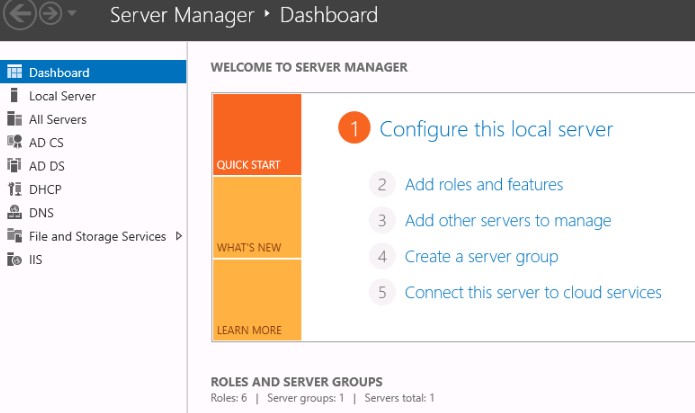
Windows Server - Installation & Activation

Visual Studio 2017 / 2019 - Installation & Activation
Office Home & Business 2016 / 2019 / 2021 – Installation & Activation
Office 2019 / 2021 Home & Student – Installation & Activation
Microsoft Visio 2016 / 2019 / 2021 - Installation & Activation
Microsoft Project 2016 / 2019 / 2021 - Installation & Activation
Office 2016 Professional Plus - Installation & Activation Guide
Office 2019 Professional Plus - Installation & Activation Guide
Windows 10 - Installation & Activation Guide
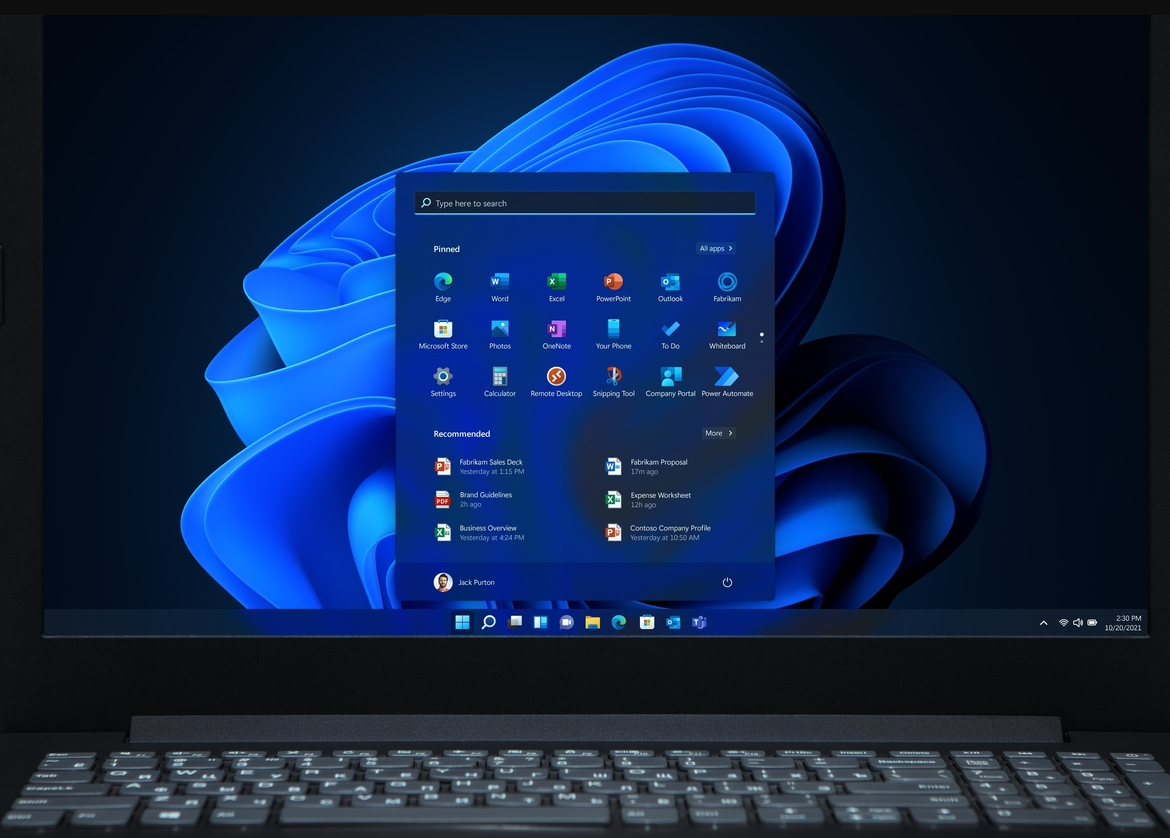
Windows 11 - Installation & Activation Guide

