

Upgrading to Windows 11 Pro in 2025 is one of the best ways to boost performance, unlock advanced productivity features, and keep your PC secure. Whether you’re upgrading from Windows 10/11 Home or performing a clean installation, this guide will walk you through the full process – step by step.
This tutorial covers requirements, installation methods, activation, troubleshooting, and expert tips to ensure your installation works smoothly on any compatible PC.
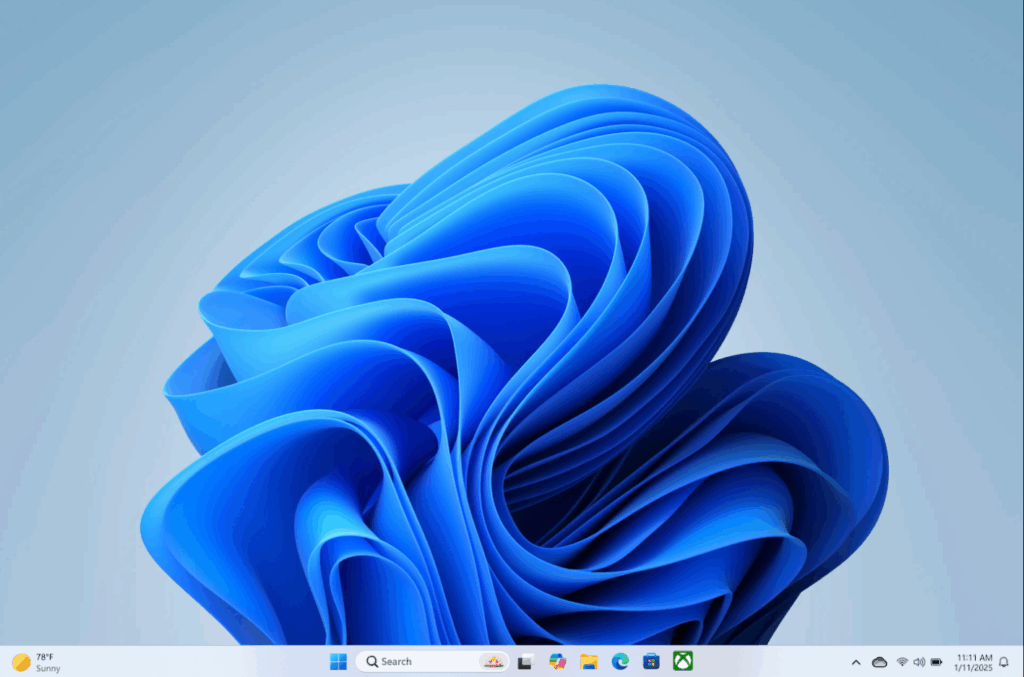
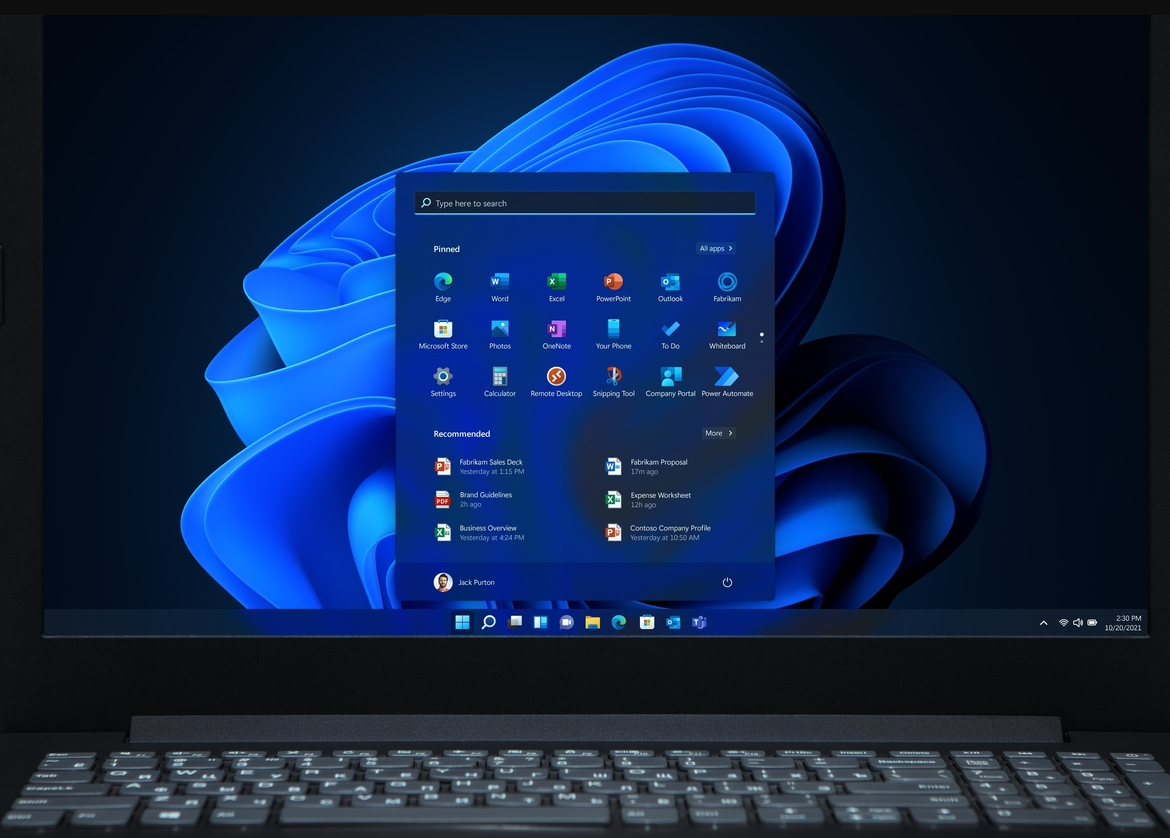
Windows 11 Pro desktop interface
Step-by-Step: Install Windows 11 Pro on Any PC in 2025
1. Check Your PC Requirements
Before installation, verify that your PC meets the official requirements:
- 1 GHz dual-core processor
- 4GB RAM minimum
- 64GB storage
- UEFI BIOS with Secure Boot
- TPM 2.0
- DirectX 12 compatible graphics
If your PC does not meet these, scroll down to Common Errors & Fixes.
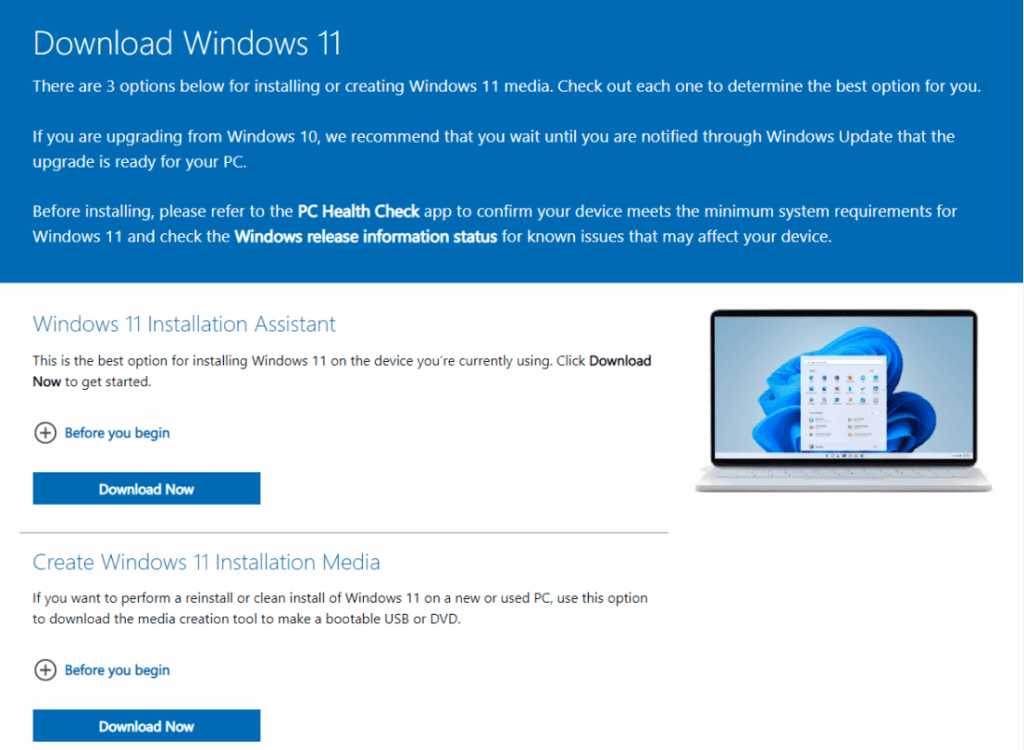
2. Download the Official Windows 11 Installer
Visit the Microsoft download page and choose:
- Windows 11 Installation Assistant (upgrade path)
- Media Creation Tool (bootable USB)
- ISO file (manual install or VM)
3. Create a Bootable USB (For Clean Install)
If you’re installing fresh:
- Run Media Creation Tool
- Select “USB Flash Drive”
- Choose an 8GB+ USB
- Wait for file creation
This USB will be used to launch Windows Setup.
4. Upgrade or Clean Install?
Choose based on your situation:
Upgrade (Keep Files, Apps & Settings)
Best when moving from:
- Windows 10 Home → Windows 11 Pro
- Windows 11 Home → Windows 11 Pro
Clean Install (Fresh System)
Best for slow PCs or systems with errors.
5. Start the Windows 11 Pro Installation
- Plug the USB
- Restart
- Enter Boot Menu (F12/F11/ESC/DEL)
- Select USB drive
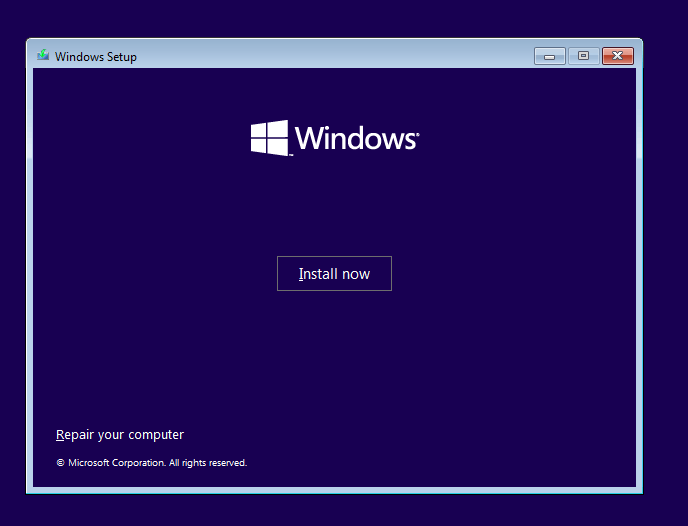
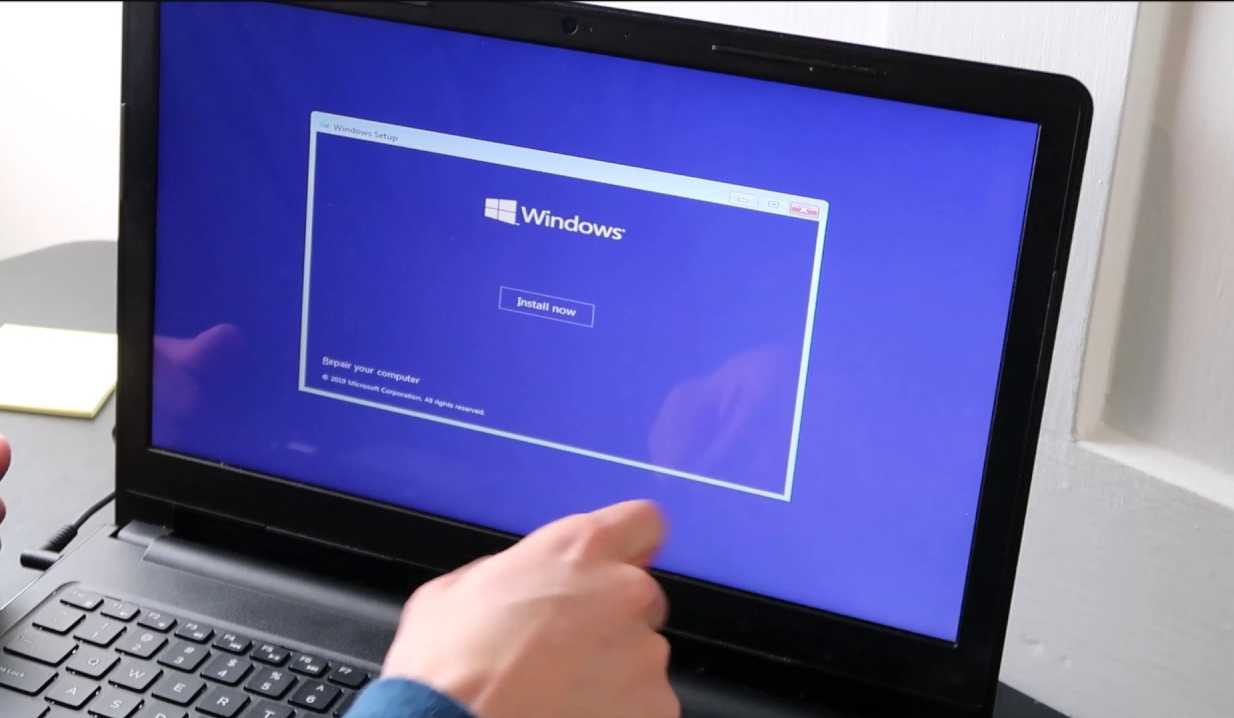
- Click Install Now
- Choose Windows 11 Pro
- Follow on-screen steps
6. Enter Your Windows 11 Pro Key
You can add your key:
- During installation
OR - After setup via
Settings → System → Activation
If upgrading from Home to Pro, entering a Pro key will automatically switch editions.
7. Fix Common Installation Errors (2025 Edition)
No TPM 2.0 detected
Enable TPM in BIOS → Security tab
Secure Boot must be enabled
Enable Secure Boot in BIOS → Boot tab
This PC can’t run Windows 11
Use bypass scripts or registry edits like:
HKEY_LOCAL_MACHINE\SYSTEM\Setup\LabConfig
8. Post-Installation Setup
After installation:
- Install Windows Updates
- Install GPU & motherboard drivers
- Turn on OneDrive backup
- Install Microsoft Office, browsers, antivirus, and essentials
FAQs: Installing Windows 11 Pro in 2025
1. Can I install Windows 11 Pro without TPM?
Yes, with bypass scripts or a registry tweak. However, it’s not officially recommended.
2. Will my files be deleted during upgrade?
No. Upgrading keeps files and apps.
A clean install removes everything.
3. Do I need a Windows 11 Pro key to upgrade?
Yes. Entering a valid key switches Windows to Pro instantly.
4. Can I use the same Windows key on multiple devices?
Retail keys: No — 1 device.
OEM keys: Locked to first device.
Volume keys: Multiple activations depending on licence.
5. Is Windows 11 Pro better than Home?
Pro includes:
- BitLocker
- RDP
- Group Policy
- Hyper-V
- Business security features
Ideal for work and productivity.
Get a real Windows 11 Pro key at a trusted price and activate all the premium features your PC deserves.
Windows Server - Installation & Activation

Visual Studio 2017 / 2019 - Installation & Activation
Office Home & Business 2016 / 2019 / 2021 – Installation & Activation
Office 2019 / 2021 Home & Student – Installation & Activation
Microsoft Visio 2016 / 2019 / 2021 - Installation & Activation
Microsoft Project 2016 / 2019 / 2021 - Installation & Activation
Office 2016 Professional Plus - Installation & Activation Guide
Office 2019 Professional Plus - Installation & Activation Guide
Windows 10 - Installation & Activation Guide
Windows 11 - Installation & Activation Guide

